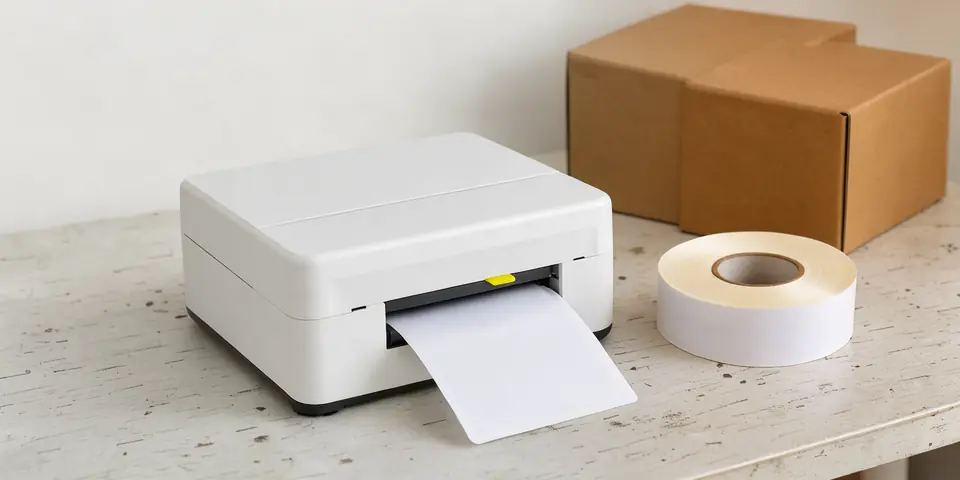
A barcode label is useful only when its encoded value matches your records and the printed symbol can be read where you use it. Start with one clear job: identifying stock on shelves, tracking items during packing, or marking products for checkout.
This guide walks through a small-batch label workflow, from choosing the data to checking the finished print. It covers making the labels, not setting up a whole inventory system or comparing printer brands.
Decide what each label identifies
Before opening a generator, decide what a scan should return. A barcode is a machine-readable form of data. It does not create a product record or connect to your inventory software on its own.
For an internal stockroom, you might use a short, stable identifier such as MUG-BLU-01. Keep a separate record that maps it to the description, location and other details. If the product name changes, the identifier can stay the same.
Avoid encoding long descriptions when a short identifier will do. A concise value fits a small label and is easier to compare with your records. Decide whether sizes, colors or pack quantities need their own identifiers before you print a batch.
A retail checkout label is a different case. Retail products need an assigned GTIN, shown in a symbol such as UPC-A or EAN-13. GS1 treats the number and the barcode symbol that carries it as separate things. A barcode image generator does not assign or license that number. Read how to get UPC barcodes before you make retail labels.
Pick a format that fits the job
For internal alphanumeric item codes, Code 128 is a common choice because it carries letters and numbers in one linear symbol. Code 39 is another option for internal labels.
If the label will be scanned at a retail point of sale, do not swap in Code 128 just because your characters fit. Match the format to the scanning workflow and to the requirements of whoever receives the goods.
Use this quick check:
- Internal shelf or bin label: consider Code 128 with your own stable identifier.
- Retail product label: confirm the assigned GTIN and use UPC-A or EAN-13.
- Shipping or logistics label: follow the trading partner's specification instead of inventing a layout.
- A link to instructions: consider a QR code if your scanning setup supports it. It is not a substitute for a retail UPC.
If you are unsure, use the barcode type decision guide before generating images.
Generate the barcode image
Open the Plain Barcode generator. Select the format for your task and enter the exact value you want to encode.
For an internal Code 128 example, enter MUG-BLU-01. Compare the characters with your inventory record. A zero and the letter O, or a one and the letter I, are easy to mix up when typed by hand.
Choose a physical size that fits the label and keeps the bars readable with their blank margins. The generator lets you set the X-dimension and bar height in millimeters, and it warns when a setting falls outside GS1 ranges. Treat a warning as a reason to review the setup.
Download an SVG when you want an image that keeps its physical size in a layout. For printer workflows, the generator also offers PNG output for 203, 300 or 600 dpi printers. Pick the one that matches your printer. A higher resolution does not make up for a poor print.
The tool makes a barcode image. It does not verify a printed symbol, promise scanner compatibility or establish ownership of a retail number.
Place the image on the label
Make a simple layout with room for the symbol, its blank margins and a human-readable identifier. If the label also carries a product name or shelf location, keep that text out of the quiet zones.
GS1 lists quiet zones, contrast, symbol size and placement among the factors that affect print quality (GS1 GO support). The quiet zone is the clear area beside a linear barcode. Keep borders, text and graphics out of it. Black bars on a white background are a dependable start.
Do not drag a barcode to an arbitrary width in a document editor. Stretching changes the bar proportions. Use the intended dimensions and check the print dialog for unexpected scaling.
If you print several labels on a sheet, confirm that the template matches the real paper. A shifted layout can clip the symbol or shrink its margin. Plain Barcode has a label sheet tool, and Word users can merge a spreadsheet column into barcode labels, but the finished page still needs a visual check and a scan test.
Keep the first layout simple. A readable identifier under the symbol helps staff spot a mismatch without rescanning a damaged label.
Print a small test batch
Print one sheet or a few labels before the full run. Look closely for broken bars, smudges, fading or lines crossing the symbol.
Keep the barcode away from folds, seams and curved areas that make it hard to present to a scanner. If a label will be handled often or get wet, choose materials suited to that setting.
A barcode that looks sharp on screen may still fail once printed. Printer settings, paper, placement and scaling can all change the result. For more on sizing, quiet zones and print settings, see how to print barcodes that scan.
Test the actual workflow
Use the scanner, device and software your staff will use every day. Scan the printed label several times in the normal position and compare the result with the original record.
Test the label where it will be attached, not just flat on a desk. A symbol that reads easily on a sample sheet can be awkward to reach on a carton, shelf edge or product.
If the scanner enters the wrong value, compare the encoded data, the scanner settings and the receiving software. If it does not read at all, check the margins, contrast, print defects and placement before changing the identifier.
A successful scan is a practical workflow test, not a formal print-quality grade. If a trading partner requires a specific barcode quality level, you may need separate verification.
Once the sample works, print the rest and keep a copy of the identifier list. That lets staff replace a label without inventing a new code.
Bottom line
The best first barcode label is a simple one: a stable identifier, the right symbology, a properly sized image and a test print that works with your real scanner and software.
Start with a single item, confirm the scanned value, and only then print a full batch. For retail labels, confirm the identification-number requirements separately from the image step. This is general information, not legal or financial advice.
Sources
- GS1: 10 steps to barcode your product
- GS1 GO Support: What should I check to ensure good quality barcodes?
- GS1 US: Barcode FAQs
- GS1: GS1 General Specifications