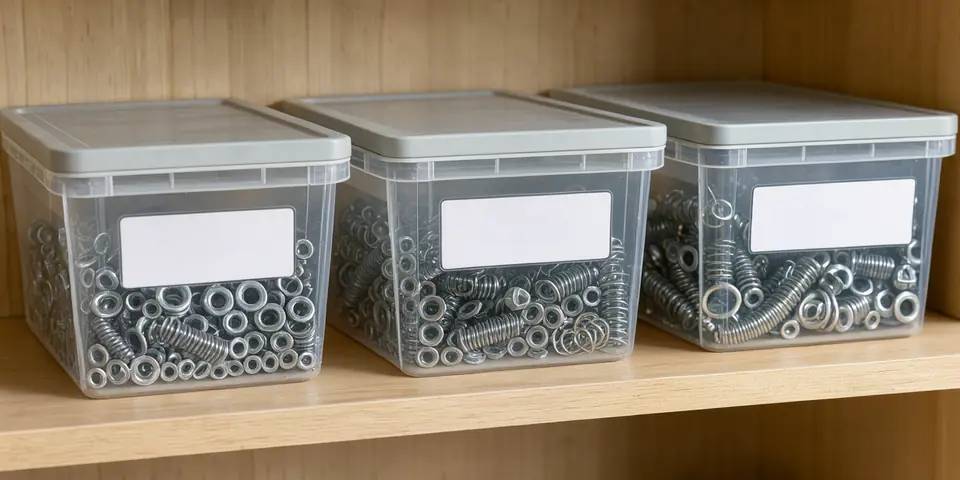
A yearly physical count shuts the stockroom down for a day or two, and by the time you find a problem the cause is months old. Cycle counting spreads the same work across the year: you count a small slice of your stock every working day, so every item gets checked on a schedule and mistakes surface while you can still trace them.
Barcodes make this routine cheap. Scanning replaces typing and reading handwriting, and a scanned location label tells you exactly where a count belongs. This guide covers the counting routine itself. For the one-time setup of SKUs, labels and scanners, start with the barcode inventory system guide.
What cycle counting is, in one paragraph
Microsoft's training material describes cycle counting as verifying inventory accuracy through frequent, regular counts of a subset of items, as opposed to a traditional annual count of everything. It also says the subset can be chosen by criteria such as value, demand or classification (Microsoft Learn). Business Central's documentation makes the same point: you can count some items more often than others, for example because they are more valuable or top sellers (Microsoft Learn).
Two things have to be true before any of this works. Every item you count needs a stable identifier, which is your SKU or a manufacturer barcode you have mapped to it. Every shelf or bin needs its own scannable location label. If either is missing, fix that first.
Step 1: Rank items into A, B and C
Pick one number that matches what hurts when the count is wrong. Many shops use money tied up (unit cost times units sold over the last 12 months). Others use how often the item is picked. Sort your SKU list by that number, then split it into three bands.
There is no official split you must follow, so choose one you can staff. Here is an example for a shop with 150 SKUs:
| Class | SKUs | Count every | Counts per week |
|---|---|---|---|
| A (top of the ranking) | 15 | week | 15 |
| B (middle) | 45 | 4 weeks | about 11 |
| C (the rest) | 90 | 13 weeks | about 7 |
That adds up to roughly 33 item counts a week, or about 7 a weekday. If that is more than one person can finish in 20 minutes, widen the C interval rather than skipping days. A short count done every day beats a long count that keeps getting postponed.
Re-rank once or twice a year. A product that sold twice last year and 500 times this quarter should not stay in class C.
Step 2: Count by location, not by item
Counting item by item sends people hunting across the building. Counting by location lets one person walk the aisle once. Build the day's list of locations that hold today's due items, and sort it in walking order.
The Microsoft training lists cycle count work by item and by location. We recommend counting by location: count everything in that bin, not just the due item. A bin that holds three SKUs gets three counts for the price of one trip.
Print the list as a plain sheet or load it onto a phone or tablet. The list needs the location code, but do not show the expected quantity (the next step explains why).
Step 3: Run the count as a blind count
A blind count means the counter does not see what the system says should be there. Microsoft's training says a blind count removes bias and preconceived notions because the counter works without the details shown in the inventory system. In practice, the counter records what is physically there rather than confirming what the screen says.
The scan sequence for each location looks like this:
- Scan the location label. This tells the sheet or app which bin the following counts belong to.
- Scan an item barcode once per unit, or scan it once and type the quantity.
- Repeat for every different SKU in the bin.
- Scan the location label again, or tap done, to close the bin.
Set the scanner to send Enter after each scan so every count lands on its own row. If scans arrive with the wrong characters, doubled, or with dropped leading zeros, work through the wrong-characters troubleshooting guide before you trust any numbers. A spreadsheet can also quietly strip leading zeros from long codes, so format the barcode column as text.
Your own location labels can be Code 128, which general-purpose barcode scanners generally read (check your model's supported symbologies). Make them in the barcode generator and print them on a sheet with the label sheet tool.
Step 4: Compare, recount, then decide
Compare counted against expected only after the counter is finished. Variance is counted minus expected, divided by expected. If the system says 48 and the counter found 45, the difference is -3, which is -3 ÷ 48 = -6.25%.
Set a rule before you start, for example: recount any bin that is off by more than 2 units or more than 5% (pick one rule and stick to it). The 48 vs. 45 example would trigger a recount under either. Have a second person, or the same person after a break, recount without seeing the first result. Microsoft's guided cycle counting prompts the worker to recount when an incorrect quantity is counted. If the recount matches the first count, the difference is real. If it matches the system, the first count was a counting error and you discard it.
Two cautions from the Microsoft documentation:
- Keep the expected figure frozen. Business Central's guidance says to keep the originally calculated journal lines and not recalculate the expected inventory, because it might change and produce wrong levels. In a spreadsheet, that means copying the expected quantities into the count sheet at the start of the day and leaving them alone.
- Stock keeps moving. Microsoft notes that on-hand inventory is not blocked while counting work is open, so picks can happen during a count. Count at a quiet time, or note every pick from that bin during the count and include it when you compare.
Also separate two kinds of problem. If you find the right item in the wrong bin, that is a transfer, not a loss. Business Central's documentation says differences caused by items posted to the wrong location should be corrected with a reclassification or transfer, not entered as counting differences.
Step 5: Log a reason, then adjust
Only after the recount do you change the system quantity. Shopify's stock counts feature shows a sensible pattern: staff record counts with a scanner or manually, a manager reviews and approves, nothing changes until approval, and then the difference between counted and expected is applied and recorded in the adjustment history (Shopify Help Center). You can copy that pattern in any tool, including a spreadsheet: one person counts, a different person approves.
For each adjustment, write down:
- The date, SKU and location
- Expected, counted and the difference
- A reason from a short fixed list: damaged, receiving error, mis-pick, mislabeled, wrong bin, unknown
- Who counted and who approved
The reasons are the point. If most of your differences are "wrong bin" on two look-alike products, you do not need more counting. You need clearer labels or non-adjacent bins. If they are "receiving error," tighten your receiving routine.
A useful health number is the share of counted bins that matched with no adjustment. Track it weekly.
Spot counts and new items
Microsoft's training also describes the spot count: when you discover a mismatch while doing other work, such as finding a bin the system shows as empty holding a different item, you count it on the spot rather than waiting for its turn. Allow this, and log it like any other count.
New SKUs start in class A for their first few weeks, because errors in receiving, labeling and naming show up early. If you are still sorting out your naming scheme, how to create SKU numbers explains how to keep codes unambiguous so the counts match the right product.
Bottom line
Rank your SKUs, count a small slice every day by scanning location and item, hide the expected quantity, recount before you adjust, and log a reason for every change. Start this week with one aisle: label its bins, print a blind count sheet, and count it. Review the reasons after a month.
This is general information about inventory practice, not accounting advice. If your counts feed tax or financial reporting, ask your accountant how often and how formally you need to count.
Sources
- Microsoft Learn: Cycle counting (Dynamics 365 Supply Chain Management training) (accessed )
- Microsoft Learn: Count, adjust, and reclassify inventory (Business Central) (accessed )
- Shopify Help Center: Stock counts (accessed )
Newsletter
At most one e-mail a day, only about new guides and tools. No tracking pixels. How we handle your address